
How to turn handwritten notes into an editable Word document
5 min read
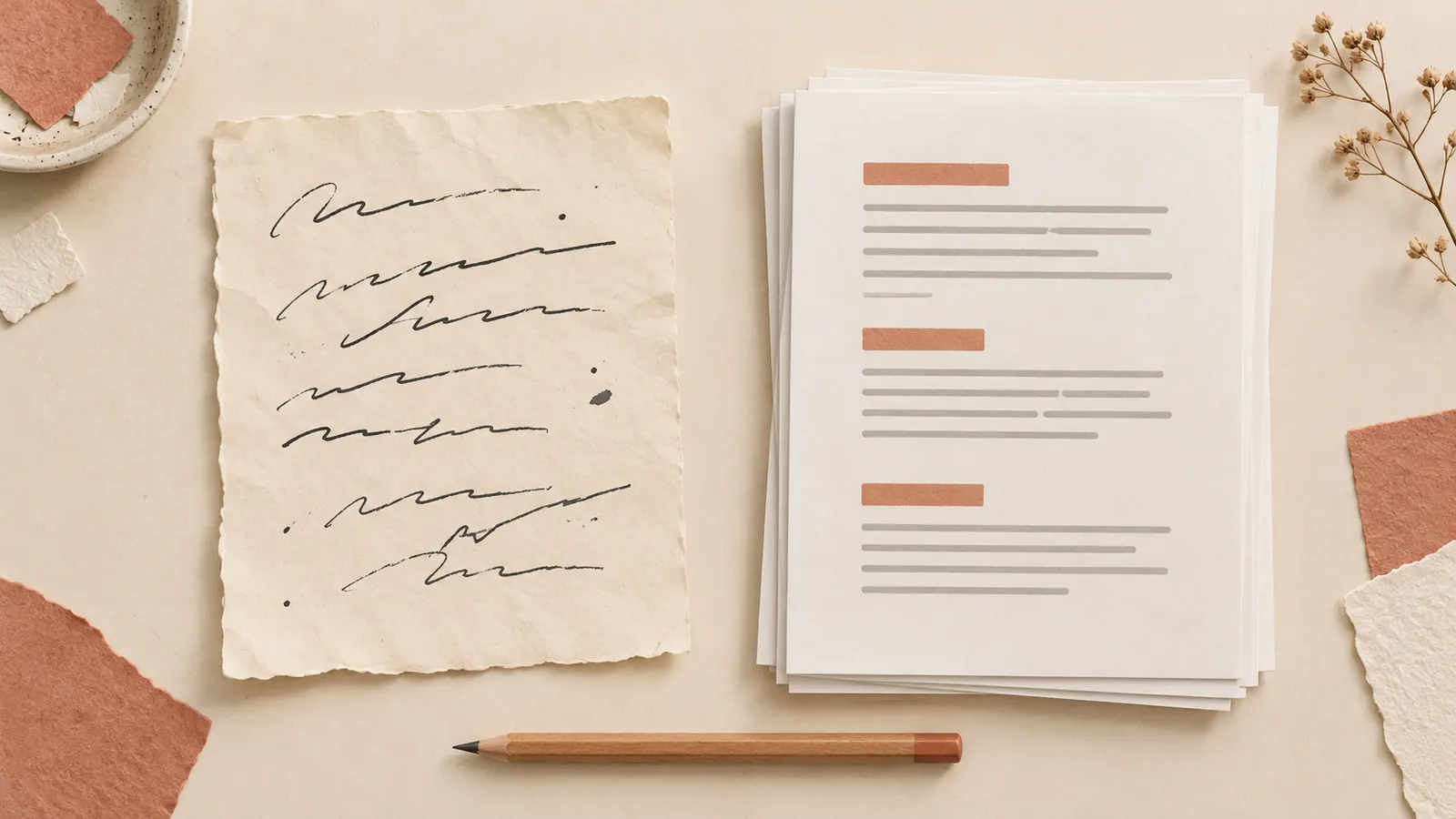
You have a handwritten draft and need a Word document you can revise. The workable route is to photograph the pages, transcribe them into text, check that text, then paste it into Word and format it. For a short note, typing it yourself may be quicker than setting up recognition. Either way, the goal is words you can select and change.
Check whether you have a picture or editable text
Inserting a photograph into Word preserves the appearance of the page. It does not by itself turn the handwriting into editable sentences. Try selecting a single word: if clicking selects the entire picture instead, you still need a transcription step.
Word can also open a scanned PDF and attempt to convert its contents. Microsoft’s guidance for scanned documents warns that handwriting is rarely recognized in that workflow. Test a representative page before relying on it for a whole notebook. Saving the same photo as a PDF first does not make the handwritten words easier to read.
Another easily confused feature is Microsoft’s Ink to Text Pen. It converts handwriting entered with a digital pen on a device; it is not a converter for photographs of paper notes.
Transcribe one page before committing to the whole document
Choose a page with the kinds of writing you actually need: joined letters, abbreviations and perhaps a margin addition. Use a handwriting recognition tool or type it manually. Compare that first result against the image. A clean introductory page will tell you little about how a densely annotated page will come out.
Keep the photographs in page order and retain a copy of the transcription before editing its wording. If you are still choosing between scanning, typing and recognition, our guide to digitizing handwritten notes covers those choices.
Read names, dates, quantities and any uncertain passages against the source before moving to formatting. A spelling suggestion cannot tell you whether a correctly spelled name belongs to the right person. Use the OCR proofreading checklist for a fuller review.
Paste the checked text, then format it in Word
Copy the transcription, open a blank Word document and paste a short section first. If unwanted fonts or spacing come with it, choose a text-only paste option where your version offers one. Microsoft documents the choices in its guide to paste formatting. The controls vary between desktop, web and mobile versions.
Keep any diagrams as separate images. Text-only paste is useful for prose, but Microsoft notes that it discards graphics and turns tables into paragraphs. If a table matters, rebuild it deliberately and check each value against its row and column labels.
Repair paragraphs without changing what the note says
Join wrapped lines one paragraph at a time
A line ending on paper need not be a paragraph ending in Word. For example, these two invented lines belong to one sentence: “Send the revised draft” and “after the review.” Joining them is reasonable. Joining a heading to the sentence below it is not. Work through a section at a time rather than removing every line break across the document.
Keep additions and unresolved readings visible
If a margin note says “check date”, retain it as a separate note until you know where it belongs. If a word is unclear, leave a marker such as [unclear] in your working copy. Do not turn an arrow, a question mark or a crossed-out sentence into a settled statement simply to make the document read smoothly.
Rebuild the document’s structure, then save it
Apply Word’s heading styles to section titles and use its list tools for actual lists. Microsoft’s instructions for adding headings explain how styles make headings consistent and support a table of contents. You can choose a new layout without trying to reproduce every handwritten line ending.
Save the editable document as a Word file (.docx). Reopen it and check a sentence, a heading and the last page. Keep the original images and checked transcription separately so a later rewrite does not become your only record of what was on the paper.
Using Encria for the transcription step
On iPhone or iPad, you can use Encria to turn handwriting into editable text, check it against the photo and copy the result. Paste that text into Word, then do the paragraph and heading work there. This method uses copied text; it does not depend on a direct Word export or automatic recreation of the paper layout.
Before transcribing private pages, read how images are processed in our privacy policy. Also consider where you save and share the resulting Word document. Start with one page you need to edit today.